
 MSG to PDF Converter Software
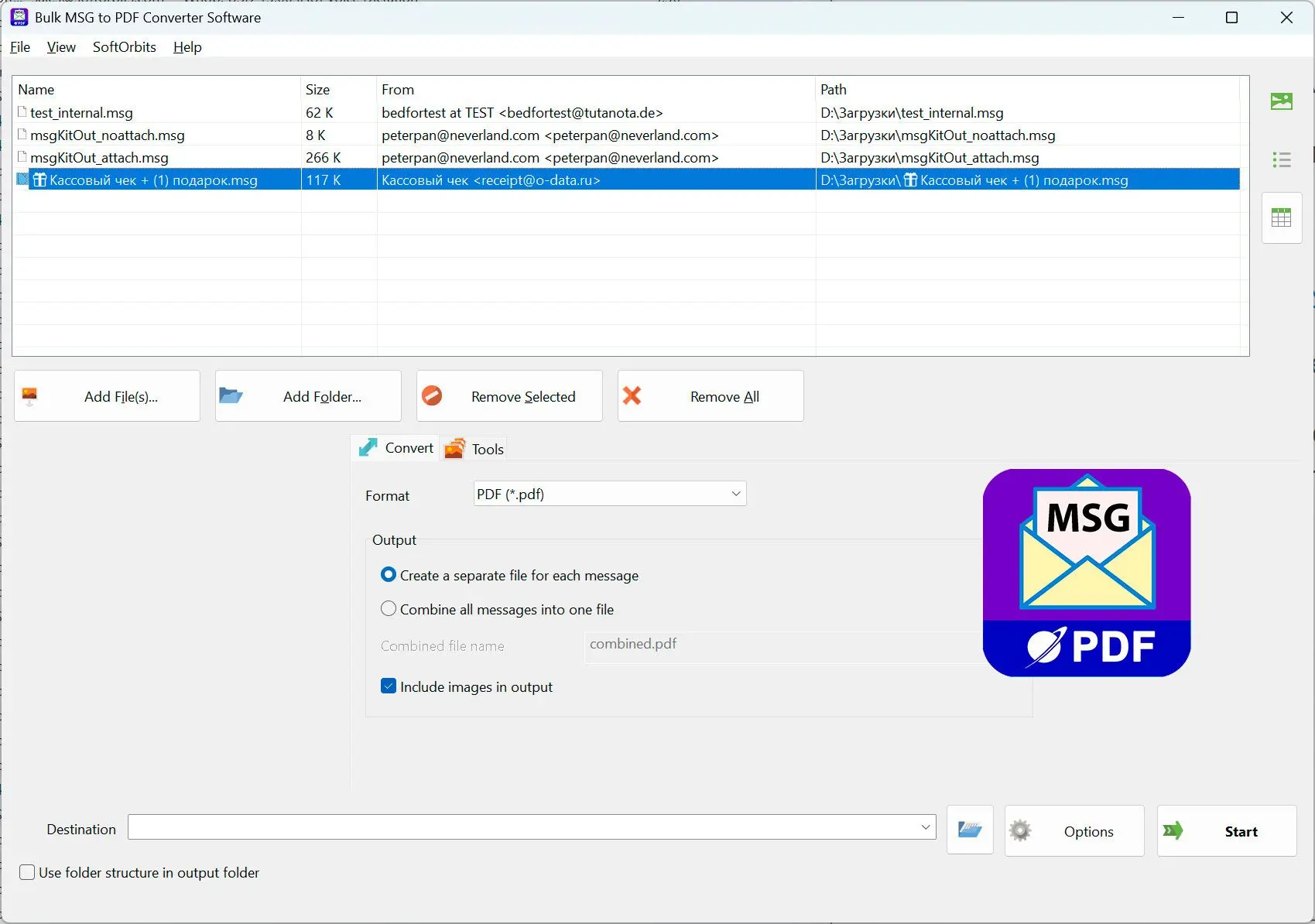
Convertitore da MSG a PDF converte file email .MSG di Outlook in PDF in blocco su Windows, localmente e senza Microsoft Outlook installato.
Convertitore da MSG a PDF converte file email .MSG di Outlook in PDF in blocco su Windows, localmente e senza Microsoft Outlook installato.
When all you have is an exported archive and no Outlook on the machine, the format decides the tool. Single saved messages are .MSG files, and the converter above turns a folder of them into PDFs in one pass; if you would rather keep those Outlook messages as native mail, an MSG to PST converter software puts them back into Outlook instead, or, for a lighter cross-client format than PST, batch convert MSG files to EML. A loose pile of .EML messages works the same way, though if you want them back in Outlook rather than as PDF, an EML to PST converter is the tool for that.
A Thunderbird profile or other mbox export follows the same fork under a different filename. Keep it as working mail and convert mbox to outlook instead of paging through a PDF export.
A full mailbox export is a different animal. A .PST archive holds every folder in one file, so a PST tool lets you tick the folders you want and export them to PDF without Outlook running. When you only need to look inside and find the right thread first, view the PST file before you export anything. If the machine has no Outlook at all, this walkthrough covers how to open a PST file without Outlook from start to finish. If the archive itself is the problem because it is too large to move, back up, or open reliably, a PST splitter cuts it into smaller parts by size, date, folder, or sender first. And if the plan is to keep the mail live rather than flatten it to PDF, a pst to mbox converter turns the same archive into the folder-per-file layout Thunderbird reads natively.
An offline cache works the same way. An .OST file can be opened directly, its folder tree walked, and selected folders sent to PDF. If you would rather keep the mail inside Outlook, convert OST to PST instead of to PDF.
Not every Outlook export is mail. If you also pulled out the address book, it lands as a pile of .vcf cards rather than messages, and a vCard to CSV converter turns that folder into one spreadsheet you can open in Excel or import into Google Contacts. The calendar branch behaves the same way and comes out as .ics files, which an ICS to CSV converter flattens into dated rows. Going the other way, once that contact list is cleaned up as a spreadsheet, a csv to vcf converter turns the rows back into cards a phone can import. And when that spreadsheet is a mailing list rather than a phone book, mail merge for Outlook and Excel sends every row its own letter, with its own subject and its own attachment.
How do you save an email as a PDF in new Outlook?
In the new Outlook, the Print command moved. Open the email, click the three-dot More actions menu, choose Print, then Print again, and pick Microsoft Print to PDF as the printer.
The new Outlook (Microsoft's 2023 redesign that replaced Mail and the classic client) dropped the old File menu, and that is where most of the confusion starts. To save a message, open it, click the More actions button (the three dots at the top right of the message), and choose Print. A preview opens; click Print there too, then set the printer to Microsoft Print to PDF and save. The flow matches the steps Microsoft lists for both the new app and the web client.
If a feature is missing, switch back to classic:
The new Outlook is still catching up to the classic client, and Microsoft has openly acknowledged the gaps in its own Q&A threads. If something you need is gone, the toggle in the top-right corner flips you back to classic Outlook, where the File then Print route is the dependable fallback.How do you save an Outlook email as a PDF on the web?
On Outlook.com and OWA, the route is the same as the new desktop app: open the email, click More actions, choose Print, then select Microsoft Print to PDF in the browser print dialog.
If you live in the browser, you do not need the desktop app at all. Open the message in Outlook on the web, click the More actions three-dot menu, and pick Print. Your browser's print dialog opens; set the destination to Microsoft Print to PDF (or "Save as PDF" in Chrome and Edge) and save. One honest catch: the browser route sometimes adds its own header and footer with the date and page count, which you can turn off in the print dialog's More settings. Printing works message by message, so when the goal is the whole mailbox rather than one letter, backup Outlook emails into a single PST instead.
How do you save an Outlook email as a PDF with attachments?
Microsoft Print to PDF does not include file attachments. It only prints the message body. To capture attachments, save them separately, or use a converter that lists them by name and embeds inline images.
Missing attachments is the single biggest surprise, and it catches people in legal and HR work who assume the PDF is the full record. Print to PDF renders the email body only; a contract or invoice attached to the message simply does not appear. There is no native way to merge file attachments into the printed PDF. You have three realistic options.
| Route | What you get | Best for |
|---|---|---|
| Print to PDF, then save attachments by hand | Body as PDF; attachments as separate files | One email, few files |
| Classic Outlook "Print attached files" checkbox | Body plus each attachment printed to PDF (often as separate prints) | Printable attachments only |
| A dedicated email-to-PDF converter | Body as PDF, file attachments listed by name; inline images embedded by option | Many emails, archiving |
Use the attachments checkbox in classic Outlook:
Classic Outlook has a Print attached files option in Print Options. It sends each attachment to the default printer alongside the email, so set Microsoft Print to PDF as your default printer first, or each attachment lands as its own separate PDF. It works for documents and images; it cannot print file types Windows has no printer handler for.A grayed-out or missing Print button in the new Outlook usually means you selected more than one email. Print there works on a single open message; select just one, or open it in its own window.
This looks like a broken install, but it is not. The new Outlook only prints one message at a time, so when you multi-select, the Print command dims or vanishes. Open a single email first, then Print. For now, single-message printing is the supported behavior in the new Outlook, and bulk work belongs in a converter. The same goes for moving mail: to shift a whole account, use a tool that can move email between mailboxes over IMAP instead of copying messages one by one.
Why do you get a .crdownload file instead of a PDF?
A .crdownload file means the browser-based print dialog started a download that never finished. Re-run Print, choose Microsoft Print to PDF or "Save as PDF," and let the save complete before closing the window.
After a late-2023 update, some new Outlook users reported getting a half-finished .crdownload file instead of a PDF. The .crdownload extension is just a partial Chromium download. The fix Microsoft suggests is the system print dialog. In the print preview, look for "Print using system dialog," pick Microsoft Print to PDF there, and the file saves cleanly. If it keeps failing, the classic-Outlook File then Print route sidesteps the browser engine entirely.
Pitfalls when saving an Outlook email as a PDF
Most bad PDFs trace back to one of three causes. Attachments get left out, images get cut off by the print engine, or the browser stamps on an unwanted header. Each has a quick fix.
Print to PDF prints the message body only, a gap people hit repeatedly in Microsoft's Q&A. Save attachments separately or use a converter, and never assume a printed email is the complete record for legal or HR files. If the archive you are printing from is itself damaged, recover the mail from the broken PST before you build the record, because a PDF made from a half-readable file quietly leaves messages out.
Modern Outlook renders email with the Word engine and dropped the old Shrink to Fit option, so large inline images can spill past the page edge. Users report this often in Microsoft's community threads. Opening the message with "View in Browser" and printing from there usually scales the images correctly.
Browser print dialogs stamp the date, subject, and page number across the top and bottom. Open More settings in the print dialog and turn Headers and footers off before you save, as discussed in Microsoft's Q&A.
If you rely on the Adobe Acrobat ribbon button, it tends to vanish the moment you select more than one email in Outlook 365, a regression Adobe blamed on Microsoft in the Adobe Community forum. For multi-email work, skip the add-in and use a standalone converter.
Printing a folder gives you a summary table, not the real messages. To get one PDF per email, export the messages and run them through a batch converter.
 MSG to PDF Converter Software
Sources